How to open HEIC photos on Windows (and convert them to JPG)
Updated:
Photos copied from an iPhone often end in .HEIC, and Windows, many websites and older programs refuse to open them. Here is what HEIC is, the quickest ways to deal with it, and what we got when we converted a 12-megapixel photo into each format.
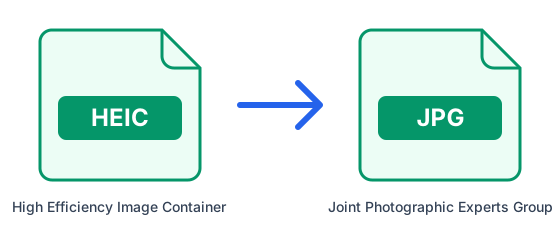
What is a HEIC file?
HEIC is the format iPhones and iPads use by default to save photos. It is based on the HEVC video codec and stores a photo in much less space than a JPG of similar quality, which is great for your phone's storage and less great for compatibility: plenty of software still has no idea what to do with it.
Option 1: convert HEIC to JPG online
The simplest fix, and it works on any computer:
- Open the HEIC to JPG converter.
- Upload the HEIC photo, or up to 20 at once.
- Download the JPG. It opens in Windows Photos, Word, email and every website.
What we measured
We converted one 12-megapixel HEIC photo into every format the converter offers. The JPG at the default quality (92) keeps the photo looking exactly as it did, at 1.9 MB. Choosing High (85) under Advanced options brought it to 1.3 MB, a good size for email and upload forms. PNG is lossless and was five times bigger, so only choose it if you plan to edit the photo further.
| Result | Size | Good for |
|---|---|---|
| JPG, default quality (92) | 1.9 MB | keeping the photo at full quality |
| JPG, High (85) | 1.3 MB | email, messages and upload forms |
| PNG | 9.4 MB | editing without further loss |
| PDF (HEIC to PDF) | 1.9 MB | forms that ask for a PDF |
Option 2: open HEIC in Windows
Windows 10 and 11 can display HEIC photos after installing Microsoft's free HEIF Image Extensions from the Microsoft Store; some PCs also need the HEVC Video Extensions, which the Store may charge for. That lets you view the photos, but many other programs and upload forms still will not accept them, which is why converting is usually the better choice.
Option 3: let the iPhone convert when you copy
On the iPhone, go to Settings → Photos and, under Transfer to Mac or PC, choose Automatic. Photos you copy to a computer with a cable are then converted to JPG on the way, while the phone keeps saving space with HEIC.
Option 4: stop the iPhone saving HEIC
Go to Settings → Camera → Formats and choose Most Compatible. New photos are then saved as JPG and take more space on the phone. Photos you already took stay HEIC, so convert those once.
Photos that come out sideways
An iPhone photo stores how it should be rotated, and some converters apply that rotation twice, so portrait photos end up lying on their side. Ours applies it exactly once, and an automated test checks it with a real HEIC file every time the site is updated.
How we tested
The photo is one of the Unsplash photographs that ship with Edubuntu, scaled to 4,032 × 3,024 pixels, the resolution of a 12-megapixel phone camera, and saved as HEIC. We converted it with this site's HEIC tools, which run the same code and ImageMagick version as our servers. Your photos will vary in size with their content, but the proportions between formats are typical.
Further reading: HEIF Image Extensions — Microsoft Store