How to export an Excel sheet to CSV without losing data
Updated:
Online shops, banks, CRMs, mailing tools and databases import data as CSV. Exporting from Excel looks trivial, but a few details decide whether the import works the first time. We built a workbook full of the usual traps and sent it through this site's converters in both directions.
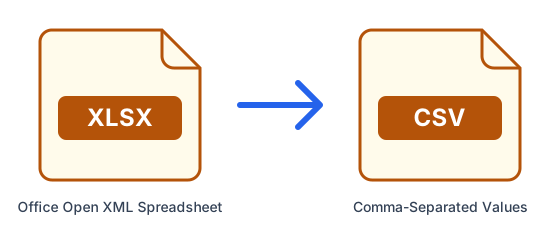
What a CSV file is
A CSV (comma-separated values) file is plain text: one line per row, with the values separated by commas. It holds a single table of values and nothing else: no formulas, formatting, colours, charts, comments or extra sheets. That simplicity is why every system can read it, and why some things are lost on the way.
Convert Excel to CSV
- Make sure the data you need is on the first sheet of the workbook.
- Open Excel to CSV and upload the file.
- Download the CSV and import it where you need it.
What we found: Excel to CSV
Our test workbook had two sheets, names with accents, a comma and quotes inside cells, a line break inside a cell, a formula, a product code typed as text (00123), a postcode that was a number formatted to show five digits (08001), an amount in euros and a percentage. The converter writes every cell the way it appears on screen, as Excel does, so all of that came through, including the zero in front of the postcode. Only the second sheet was left out. Writing cells as shown has a catch, though: the amount kept its euro sign and thousands separator, and 7.5% in a cell formatted without decimals became 8%.
| In the Excel file | In the CSV |
|---|---|
| Two sheets | Only the first sheet |
| Accents and symbols (José Núñez, Zoë, €) | Kept exactly, saved as UTF-8 |
| A comma, quotes or a line break inside a cell | Kept, with the cell wrapped in quotes |
| A formula (=F2*2) | Its result (2469) |
| A code typed as text: 00123 | 00123 |
| The number 8001 formatted to show 08001 | 08001, as shown |
| 1234.5 formatted as euros | 1,234.50 € (in quotes, because of the comma) |
| 7.5% in a cell formatted without decimals | 8%, rounded as shown |
What we found: CSV to Excel
Going the other way, CSV to Excel puts each value in its own cell, ready to sort and filter, and it decides by itself what looks like a number. That is helpful for amounts, and harmful for codes and phone numbers: leading zeros and plus signs disappear. Of the dates we tried, only the year-month-day form became a real date.
| Value in the CSV | In the Excel file |
|---|---|
| 00042 (an order code) | The number 42 |
| +593991234567 (a phone number) | The number 593991234567 |
| 2026-10-01 | A real date |
| 25/12/2026 | Plain text, not a date |
How to avoid losing data
Check the formats before you convert, because the CSV holds exactly what the cells display: show enough decimals, and if the receiving system expects plain numbers, remove currency symbols and thousands separators from those columns. Keep codes, postcodes, phone numbers and account numbers as text, so they also survive the trip back into a spreadsheet. Move the sheet you want to the front before converting. Write dates as year-month-day (2026-10-01) when the file will travel between systems or countries. And remember that Excel works with at most 15 significant digits, so a 16-digit card number must be stored as text to survive.
When the other system wants semicolons
Our converter writes standard CSV with commas. Some software, especially in countries that use the comma as a decimal mark, expects semicolons instead. Look for a separator setting in the receiving system's import screen rather than editing the file by hand; and when you open a CSV in Excel yourself, the Data > From Text/CSV import lets you choose the separator and set columns such as codes to Text before anything is lost.
How we tested
We built the workbook ourselves with three rows of sample data and a second sheet, converted it with Excel to CSV, and converted a one-row CSV with CSV to Excel, then inspected the cells of the result. Both tools use LibreOffice, the same engine and settings our servers run, and the same checks run automatically on every update of the site, so this guide stays true to what the converter does.
Further reading: IETF RFC 4180 — Common Format for CSV Files