Split PDF
Separate a PDF into single pages, or pull out just the pages you need — one chapter, the signed page, a few slides. Choose how to split, upload the file and download the result.
Drag & drop your PDF file here, or
Split PDF in 3 steps
- 1
Choose how to split
Every page as a separate PDF, or only the pages you write (for example 1-3, 7).
- 2
Upload your PDF
Drag the PDF or choose it from your device.
- 3
Download the result
A ZIP with one PDF per page, or a new PDF with the pages you picked.
What the PDF splitter does
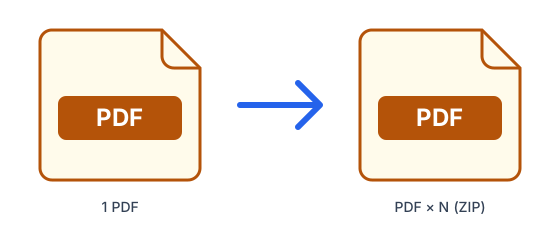
- Every page as its own PDF, named page-001.pdf, page-002.pdf… inside a ZIP.
- Or a single PDF with only the pages you list, in the order you write them.
- Pages are copied as they are: nothing is re-encoded or lost.
- Up to 2,000 pages per file.
Tips for splitting PDFs
- Write ranges and single pages separated by commas: 1-3, 7, 10-12.
- Pages come out in the order you write them, so '5, 1' puts page 5 first.
- Password-protected PDFs cannot be split — remove the password first.
What is PDF?
PDF preserves a document's exact layout, fonts and images so it looks the same on every device and printer. It is the standard for sharing, signing and archiving final documents, but it is designed to be read rather than edited.
Frequently asked questions
- Is it free to split a PDF?
- Yes. Free accounts can process up to 50MB at a time, 10 times every 24 hours; Pro raises that to 1.5GB with no daily limit.
- How do I extract specific pages?
- Choose "Only some pages" and write them like 1-3, 7. You get one PDF with those pages.
- What do I get when I split every page?
- A ZIP file with one PDF per page. Every computer and phone can open ZIP files.
- Are my PDFs safe?
- Files travel over an encrypted connection, are scanned for malware (files up to 200 MB) and are deleted automatically: after 1 hour without an account, 24 hours with a free account, or 7 days with Pro.